Monday, 23 December 2024

Wednesday, 25 August 2021
Download the IBM Watson Assistant Conversation Logs
Logs Python script
The export_logs.py file is a Python script that you can use to
export logs from a workspace, and convert them into CSV format.
Steps before downloading the logs
- You must have the python install in your local machine.
- Once your python machine will get executed, you must have to download the python libraries to proceed further.
- The respective libraries are like pandas, Watson_devloper_cloud.
- Install these libraries with the command of pip install pandas and pip install ibm-watson
- If you get any other error, just put it over google and follow the stack overflow for the workaround. The errors are usually related to module. Just simply install it to your machine by using install command.
- Command to execute the python script: python export_logs.py <IBM Workspace SKILL ID> --apikey <IBM Workspace API KEY>
- In order to put the filter on IBM data you can use this argument under # Set up arguments section.
#parser.add_argument('--filter', help='Search filter to
use.', type=str, default='response_timestamp>='+str(last_monday)+'T00:00:00.000Z'+',response_timestamp<='+str(today))
---------------------------------------------------------------------------
import pandas as pd
import argparse
import json
from datetime import date
import datetime
import watson_developer_cloud
from pandas.io.json import json_normalize
from watson_developer_cloud import AssistantV1 as WatsonAssistant
from urllib.parse import urlparse, parse_qs
from ibm_watson import AssistantV1
from ibm_cloud_sdk_core.authenticators import IAMAuthenticator
from ibm_watson import ApiException
import urllib3
urllib3.disable_warnings()
today = date.today()
print("Today's date:", today)
last_monday=today- datetime.timedelta(days=(7))
print('From: '+str(last_monday)+' To: '+str(today))
# Set up arguments.
parser = argparse.ArgumentParser()
parser.add_argument('workspace_id', help='Watson Assistant workspace ID', type=str)
parser.add_argument('--userpass', help='Watson Assistant service username:password. Cannot be used with --apikey', type=str, default=None)
parser.add_argument('--apikey', help='Watson Assistant API Key. Cannot be used with --userpass', type=str, default='<IBM Workspaace Skill ID>')
parser.add_argument('--filename', help='Output file name.',type=str, default='Watson_Log_'+str(today)+'.csv')
parser.add_argument('--filetype', help='Output file type. Can be: CSV, TSV, XLSX, JSON (default)', type=str, default='CSV', choices=['CSV','TSV','XLSX','JSON'])
parser.add_argument('--url', help='Default is https://gateway-fra.watsonplatform.net/assistant/api', type=str, default='https://gateway-fra.watsonplatform.net/assistant/api')
parser.add_argument('--version', help='Default = 2018-09-20', type=str, default='2020-04-01')
parser.add_argument('--totalpages', help='Maximum number of pages to pull. Default is 999', type=int, default=999)
parser.add_argument('--pagelimit', help='Maximum number of records to a page. Default is 200.', type=int, default=200)
parser.add_argument('--filter', help='Search filter to use.', type=str, default='')
#parser.add_argument('--filter', help='Search filter to use.', type=str, default='response_timestamp>='+str(last_monday)+'T00:00:00.000Z'+',response_timestamp<='+str(today))
args = parser.parse_args()
#python export.py <IBM Workspace SKILL ID> --apikey <IBM Workspace API KEY>
## This part is used for saving dataframes.
f_conversation_id = 'conversation_id'
f_request_timestamp = 'request_timestamp'
f_response_timestamp = 'response_timestamp'
f_user_input = 'User Input'
f_output = 'Output'
f_intent = 'Intent'
f_confidence = 'Confidence'
f_exit_reason = 'Exit Reason'
f_logging = 'Logging'
f_context = 'Context'
f_chatbot_name = 'chatbot_name'
f_sys_full_name = 'sys-full-name'
f_country = 'country'
f_locationName = 'locationName'
f_cityName= 'cityName'
f_loginName = 'loginName'
f_chatId= 'chatId'
f_sessionId= 'sessionId'
columns = [
f_chatbot_name, f_conversation_id, f_chatId, f_sessionId, f_sys_full_name, f_loginName, f_country, f_cityName, f_locationName, f_request_timestamp, f_response_timestamp,
f_user_input, f_output, f_intent, f_confidence, f_exit_reason, f_logging, f_context
]
## Saving methods.
def save_json(data=None,file_name=None):
with open(file_name, 'w') as out:
json.dump(data,out)
def save_xsv(data=None, sep=',', file_name=None):
df = convert_json_to_dataframe(data)
if df is not None:
df.to_csv(args.filename,encoding='utf8',sep=sep,index=False)
def save_xlsx(data=None, file_name=None):
df = convert_json_to_dataframe(data)
if df is not None:
df.to_excel(args.filename,index=False)
def convert_json_to_dataframe(data=None):
rows = []
if data == [[]]:
print('No Logs found. :(')
return None
for data_records in data:
for o in data_records:
row = {}
# Let's shorthand the response and system object.
r = o['response']
s = r['context']['system']
row[f_conversation_id] = r['context'][f_conversation_id]
row[f_request_timestamp] = o[f_request_timestamp]
row[f_response_timestamp] = o[f_response_timestamp]
row[f_chatbot_name] = r['context'][f_chatbot_name]
row[f_sys_full_name] = r['context'][f_sys_full_name]
row[f_loginName] = r['context'][f_loginName]
# row[f_country] = r['context'][f_country]
# row[f_cityName] = r['context'][f_cityName]
# row[f_locationName] = r['context'][f_locationName]
row[f_chatId] = r['context'][f_chatId]
row[f_sessionId] = r['context'][f_sessionId]
if 'text' in r['input']: row[f_user_input] = r['input']['text']
if 'text' in r['output']:row[f_output] = ' '.join(r['output']['text'])
if len(r['intents']) > 0:
row[f_confidence] = r['intents'][0]['confidence']
row[f_intent] = r['intents'][0]['intent']
if 'branch_exited_reason' in s: row[f_exit_reason] = s['branch_exited_reason']
if 'log_messaging' in r['output']: row[f_logging] = r['output']['log_messaging']
row[f_context] = json.dumps(r['context'])
rows.append(row)
# Build the dataframe.
df = pd.DataFrame(rows,columns=columns)
# cleaning up dataframe. Removing NaN and converting date fields.
df = df.fillna('')
df[f_request_timestamp] = pd.to_datetime(df[f_request_timestamp])
df[f_response_timestamp] = pd.to_datetime(df[f_response_timestamp])
# Lastly sort by conversation ID, and then request, so that the logs become readable.
df = df.sort_values([f_conversation_id, f_request_timestamp], ascending=[True, True])
return df
## Make connection to conversation.
if args.userpass != None and args.apikey == None:
up = args.userpass.split(':')
username = up[0]
password = up[1]
c = WatsonAssistant(url=args.url, version=args.version, username=username, password=password)
elif args.apikey != None and args.userpass == None:
authenticator = IAMAuthenticator(args.apikey)
assistant = AssistantV1(
version='2020-04-01',
authenticator = authenticator
)
assistant.set_service_url('https://api.au-syd.assistant.watson.cloud.ibm.com')
response=assistant.list_logs(
workspace_id=args.workspace_id
).get_result()
#print(json.dumps(response, indent=2))
else:
print('You must set --userpass or --apikey to run. Exiting.')
exit(1)
## Download the logs.
j = []
page_count = 1
cursor = None
count = 0
x = { 'pagination': 'DUMMY' }
while x['pagination']:
if page_count > args.totalpages:
break
print('Reading page {}.'.format(page_count))
x = assistant.list_logs(workspace_id=args.workspace_id,cursor=cursor,page_limit=args.pagelimit, filter=args.filter)
x = x.result # Assistant V2 update.
j.append(x['logs'])
count = count + len(x['logs'])
page_count = page_count + 1
if 'pagination' in x and 'next_url' in x['pagination']:
p = x['pagination']['next_url']
u = urlparse(p)
query = parse_qs(u.query)
cursor = query['cursor'][0]
## Determine how the file should be saved.
args.filetype = args.filetype.upper()
if args.filetype == 'CSV':
save_xsv(data=j,sep=',',file_name=args.filename)
elif args.filetype == 'TSV':
save_xsv(data=j,sep='\t',file_name=args.filename)
elif args.filetype == 'XLSX':
save_xlsx(data=j, file_name=args.filename)
else:
save_json(data=j,file_name=args.filename),
print('Writing {} records to: {} as file type: {}'.format(count, args.filename, args.filetype))
--------------------------------------------------
Code Execution

Monday, 9 July 2018
Degrading android version to build the APK
Here is the command to remove the existing Android version.
Steps: You have to go to your Hybrid folder in your root directory.
command: cordova platform remove android
Example: D:\SVN Repo\07-06-2018\MOBILEAPP\hybrid>cordova platform remove android
Here is the command to add the Android version.
Sunday, 8 July 2018
Code to retrieve an image from Oracle mobile cloud Storage collection
Calling the Storage API from Your App
Wednesday, 4 July 2018
Get State,City name from a latitude and longitude
JavaScript and Geolocation
Geolocation API is an important feature available in modern HTML5 web browsers, which allows us to request current location of the user using JavaScript, the location information is represented by latitude and longitude coordinates. For privacy reasons, the user permission is required to access its location information.
<p><button onclick="getLocation()">Get My Location</button></p>
<p id="demo"></p>
<script src="http://maps.google.com/maps/api/js?key=AIzaSyCiRgLZ_8pFomu9f-7TEzhsgQmY4Q-c11c"></script>
<script>
var x=document.getElementById("demo");
function getLocation(){
if (navigator.geolocation){
navigator.geolocation.getCurrentPosition(showPosition,showError);
}
else{
x.innerHTML="Geolocation is not supported by this browser.";
}
}
function showPosition(position){
lat=position.coords.latitude;
lon=position.coords.longitude;
displayLocation(lat,lon);
}
function showError(error){
switch(error.code){
case error.PERMISSION_DENIED:
x.innerHTML="User denied the request for Geolocation."
break;
case error.POSITION_UNAVAILABLE:
x.innerHTML="Location information is unavailable."
break;
case error.TIMEOUT:
x.innerHTML="The request to get user location timed out."
break;
case error.UNKNOWN_ERROR:
x.innerHTML="An unknown error occurred."
break;
}
}
function displayLocation(latitude,longitude){
var geocoder;
geocoder = new google.maps.Geocoder();
var latlng = new google.maps.LatLng(latitude, longitude);
geocoder.geocode(
{'latLng': latlng},
function(results, status) {
if (status == google.maps.GeocoderStatus.OK) {
if (results[0]) {
var add= results[0].formatted_address ;
var value=add.split(",");
count=value.length;
country=value[count-1];
state=value[count-2];
city=value[count-3];
x.innerHTML = "state name is: " + state ;
<!--Below method is used to remove PIN Code from the String using Regex method. You can use an online tool to customize your String. https://txt2re.com/index-javascript.php3?s=Uttar%20Pradesh%20201301&11&4-->
var txt=state;
var re4='(\\s+)'; // White Space 1
var re5='(\\d+)'; // Integer Number 1
var p = new RegExp(re4+re5,["i"]);
var m = p.exec(txt);
if (m != null)
{
var ws1=m[1];
var int1=m[2];
var remove = ws1 + int1;
<!-- document.write("("+ws1.replace(/</,"<")+")"+"("+int1.replace(/</,"<")+")"+"\n"); -->
var res = txt.replace(remove, "");
x.innerHTML = "state name is: " + res ;
}
}
else {
x.innerHTML = "address not found";
}
}
else {
x.innerHTML = "Geocoder failed due to: " + status;
}
}
);
}
</script>
Monday, 25 June 2018
Create Oracle JET Hybrid Mobile Application
Follow the below steps to get started :
@oracle-jet cli contains the oraclejet generator, so there is no need to install it separately. Also to install a specific version of the oracle jet-cli use @version
You can build and serve your app using ojet command-
npm install -g yo
Enter npm list –g yo to verify that the command succeeded. If the package isn’t listed, scroll through the install command output to locate the source of the failure.
b. Install Grunt :
npm install -g grunt-cli
npm install -g bower
npm install -g cordova
e. Install generator-oraclejet

Install Android Tools
Install iOS Tools
Monday, 18 June 2018
Mobile Backends
Mobile Backends
- Login to the IDCS account

- Click on the Database

- Click on the Instance


- Click on the mobile Core Pod
- Expand the Load balancer and there you will see the URL
- Add /mobileui with your URL and then you will be able to redirect to your Mobile Backend.

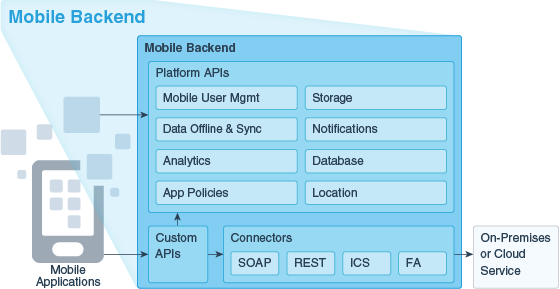
What Is a Mobile Backend and How Can I Use It?
What's the Mobile Backend Development Process?
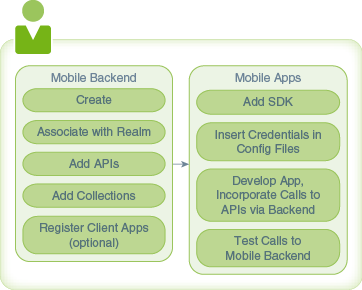
Creating and Populating Mobile Backends
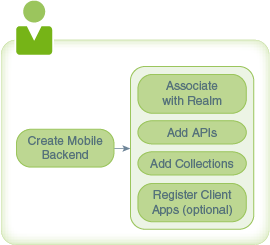
Creating a Mobile Backend
- Make sure you're in the environment where you want to create the mobile backend.
- Click
 to open the side menu and select Applications > Mobile Backends.
 - Click New Mobile Backend.
- Enter a name for the mobile backend and a description.
Mobile Backend Authentication and Connection Info
- Environment URLs
- The Base URL is needed for all API calls. This URL is distinct for each environment that you have provisioned.
- The OAuth Token Endpoint is the URL that your app needs to use to make OAuth token requests.
- A SSO Token Endpoint is also provided if you enable OAuth and then enable single sign-on (SSO) for your mobile backend. Your app would use this URL to obtain a single sign-on OAuth token in order to login through a remote identity provider.
- A set of Authentication Keys, which your app needs to access APIs through the mobile backend. Keys are generated for both OAuth Consumer and HTTP Basic authentication. Use the toggle switch next to each to enable or disable access through that protocol.A set of Access Keys, which your app needs to access APIs through the mobile backend. Keys are generated for both OAuth Consumer and HTTP Basic authentication. Use the toggle switch next to each to enable or disable access through that protocol. For OAuth, you can also enable SSO in order to allow your company’s identity provider to be used authenticate users.OAuth Consumer keys are generated in the form of a client ID and a client secret. These two values are unique to this mobile backend.HTTP Basic Authentication keys are generated for you in the form of a mobile backend ID and an anonymous key.These keys are also unique by environment. When you deploy a mobile backend to a different environment, a new set of keys is generated for the copy of the mobile backend that is added to the target environment.If you suspect that these credentials have been compromised (such as by an application handling them insecurely), click Refresh to replace the credentials with new ones or click Revoke to cancel the existing credentials without generating replacements.Note:Think twice before refreshing or revoking credentials, since these actions will block any calls that any existing apps make through the mobile backend. To get the apps working properly again after credentials have been revoked or refreshed, you need to rebuild the apps with the new credentials and redeploy them.
Environments and Mobile Backends
Realms and Mobile Backends
Changing a Mobile Backend's Realm
- Make sure you're in the environment where you want to change the realm.
- Click to open the side menu and select Applications > Mobile Backends.
- Open the mobile backend. (Select it and click Open.)
- Click the Users tab. This tab lets you search for and manage users, and change the realm for the mobile backend.
Getting Test Users for a Mobile Backend
- Make sure you're in the environment where you want to work with test users.
- Click to open the side menu and select Applications > Mobile Backends.
- Select your mobile backend and click Open.
- In the left navbar, click Users.
Associating APIs with a Mobile Backend
- Click to open the side menu and select Applications > Mobile Backends.
Associating Storage Collections with a Mobile Backend
- Make sure you're in the environment containing the draft mobile backend.
- Click to open the side menu and select Applications > Mobile Backends.
- Select your mobile backend and click Open.
- In the left navbar of the mobile backend, click Storage.
- Click Select Collections.
- Start typing the name of the collection that you want to add, select the collection from the drop-down list, and click Select.
Clients and Mobile Backends
What Can I Change in a Mobile Backend?
- Registered clients
- Notifications credentials
- Custom APIs (and their implementations)
- Any connector APIs that are called from custom API implementations
- Storage collections
- User realm
- App policies
Video: Mobile Backend Design Considerations

-
 In this article, we will show you how to create REST connection that might be used to create REST service. This is very simple and fair...
 -
To build an apk for android device, you need to first degrade your android version to 6.2.3. Here is the command to remove the existing A...
