Mobile Backends
Oracle Mobile Cloud Service (MCS) is built around the concept of mobile backends, which enables you, as a mobile app developer, to develop and deploy groupings of APIs that are designed to support a specific set of mobile apps. You can then associate one or more apps with the mobile backend to access those APIs.
Steps to access the Mobile Backend:
- Login to the IDCS account

- Click on the Database

- Click on the Instance


- Click on the mobile Core Pod
- Expand the Load balancer and there you will see the URL
- Add /mobileui with your URL and then you will be able to redirect to your Mobile Backend.

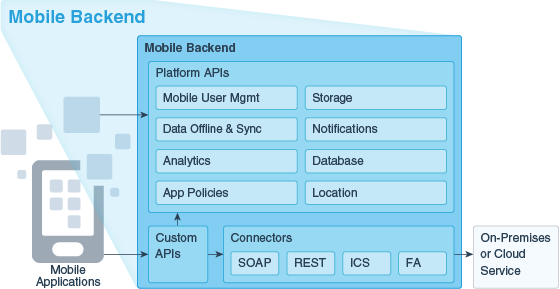
What Is a Mobile Backend and How Can I Use It?
A mobile backend is a secure grouping of APIs and other resources for a set of mobile apps. Within a mobile backend, you select the APIs that you want available for those apps. For any apps that you want to receive notifications, you can also register the appropriate credentials for the given network (e.g. APNS, GCM, or WNS) in the mobile backend.
You can have multiple backends, each serving a set of applications. In addition, you can have APIs that are used by multiple backends.
When an app accesses APIs through MCS, it is always in the context of a mobile backend. The app authenticates with credentials (OAuth Consumer or HTTP Basic Authentication) specific to the mobile backend or through an identity store (or social login provider) that is mediated by your mobile backend. If the called API includes calls to other APIs within the backend, the identity and credentials of the original caller are propagated through the chain of calls.
You don't have to start your work in MCS with a mobile backend (for example, you could start developing custom APIs or set up storage collections first without associating them with any mobile backends). But you may find it useful to do so. Working in mobile backends helps you visualize the resources available for the target apps and how they will work together. In addition, you can use the mobile backend's security context to test calls to your APIs, even in the earliest stages of development.
What's the Mobile Backend Development Process?
Generally speaking, using MCS entails developing APIs, grouping them in mobile backends, and developing mobile apps that use these mobile backends. The development model is flexible, allowing you to work on APIs, mobile backends, and mobile apps largely in parallel.
As shown in this figure, the general workflow includes steps both for creating and filling out the mobile backend and for setting up your app to work with the mobile backend.
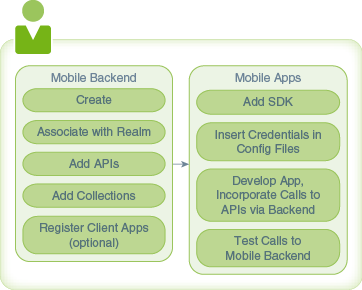
Creating and Populating Mobile Backends
You create and populate mobile backends directly in Oracle Mobile Cloud Service. Once you have created a mobile backend, you can associate APIs and Storage collections with it, and register client apps that will use the mobile backend.
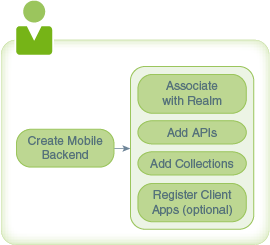
Creating a Mobile Backend
- Make sure you're in the environment where you want to create the mobile backend.
- Click
 to open the side menu and select Applications > Mobile Backends.
 - Click New Mobile Backend.
- Enter a name for the mobile backend and a description.
Mobile Backend Authentication and Connection Info
The following authentication and connection details are generated when you create a mobile backend and are displayed on the mobile backend’s Settings page. Your apps use these details to connect to and authenticate with APIs associated with that mobile backend. These credentials can be used by every application associated with that mobile backend.
- Environment URLs
- The Base URL is needed for all API calls. This URL is distinct for each environment that you have provisioned.
- The OAuth Token Endpoint is the URL that your app needs to use to make OAuth token requests.
- A SSO Token Endpoint is also provided if you enable OAuth and then enable single sign-on (SSO) for your mobile backend. Your app would use this URL to obtain a single sign-on OAuth token in order to login through a remote identity provider.
- A set of Authentication Keys, which your app needs to access APIs through the mobile backend. Keys are generated for both OAuth Consumer and HTTP Basic authentication. Use the toggle switch next to each to enable or disable access through that protocol.A set of Access Keys, which your app needs to access APIs through the mobile backend. Keys are generated for both OAuth Consumer and HTTP Basic authentication. Use the toggle switch next to each to enable or disable access through that protocol. For OAuth, you can also enable SSO in order to allow your company’s identity provider to be used authenticate users.OAuth Consumer keys are generated in the form of a client ID and a client secret. These two values are unique to this mobile backend.HTTP Basic Authentication keys are generated for you in the form of a mobile backend ID and an anonymous key.These keys are also unique by environment. When you deploy a mobile backend to a different environment, a new set of keys is generated for the copy of the mobile backend that is added to the target environment.If you suspect that these credentials have been compromised (such as by an application handling them insecurely), click Refresh to replace the credentials with new ones or click Revoke to cancel the existing credentials without generating replacements.Note:Think twice before refreshing or revoking credentials, since these actions will block any calls that any existing apps make through the mobile backend. To get the apps working properly again after credentials have been revoked or refreshed, you need to rebuild the apps with the new credentials and redeploy them.
For details on using the various authentication methods, see Authentication in MCS.
To make it easier to incorporate these details in your apps, use the MCS SDKs for your app platforms. See The SDKs.
Environments and Mobile Backends
All work on mobile backends takes place in the context of an environment. You can use a separate environment for each phase in the mobile backend lifecycle, such as development, testing, and production.
Typically you create a mobile backend in an environment that you have designated for development, publish that mobile backend, and then deploy it to another environment for testing. Once thoroughly tested, you would then deploy the mobile backend to your production environment.
For more on environments, see What is My Environment?.
Realms and Mobile Backends
A realm is the security context for a set of users that defines a set of properties that contain information on the user, such as user ID and user name as well as any custom information that is relevant to the purpose of the apps using that realm.
You can have different realms for different purposes. Each mobile backend in an environment can be associated with only one realm, but multiple mobile backends can be associated with the same realm, allowing them to use a shared set of users and data. When you create a mobile backend, it is assigned to the default realm for the environment.
You can change the realm associated with a mobile backend from the Users tab of the mobile backend. Realms are typically handled by users with the Oracle Cloud identity domain administrator role. If you don’t have that role and you need to change the mobile backend’s realm, contact someone who does have that role. For details on the default realm, see Setting the Default Realm for an Environment.
Even when a mobile backend is configured to allow login through enterprise SSO, it needs a realm that contains records for the users that log in through SSO. In this case, the realm would define only the properties needed to match the user records with those in the identity provider (such as user name or email address).
Note:
When you change the realm for a mobile backend, the user properties and user data also change. Make sure that the new realm includes all the properties required by any mobile apps in the mobile backend.Changing a Mobile Backend's Realm
- Make sure you're in the environment where you want to change the realm.
- Click to open the side menu and select Applications > Mobile Backends.
- Open the mobile backend. (Select it and click Open.)
- Click the Users tab. This tab lets you search for and manage users, and change the realm for the mobile backend.
Getting Test Users for a Mobile Backend
You’ll probably find it useful to have one or more test users set up in the realm associated with your mobile backend. Among other things, this will make it easier to try out APIs in your mobile backend. As an app developer, you probably don’t have the permissions necessary to create test users, but a person on your team with the Oracle Cloud identity domain administrator role can.
To see if you have any test users:
- Make sure you're in the environment where you want to work with test users.
- Click to open the side menu and select Applications > Mobile Backends.
- Select your mobile backend and click Open.
- In the left navbar, click Users.
If you don’t have any test users, see Creating Individual Mobile Users for Testing for information on creating them.
Associating APIs with a Mobile Backend
Once you have a mobile backend, you can use the API Catalog to select the custom APIs you want to access through that mobile backend. The API Catalog provides detail on each API endpoint and its documentation, as well as an opportunity to test the endpoint with mock data to see what it does.
- Click to open the side menu and select Applications > Mobile Backends.
Note:
Platform APIs (for Storage, Mobile User Management, Analytics, etc.) are automatically available in your mobile backends. If an API with the functionality that you are looking for isn’t available, you can design such an API yourself. See Custom API Design.Associating Storage Collections with a Mobile Backend
You can associate a mobile backend with collections so that your mobile apps can work with data in those collections using the MCS platform’s Storage API.
To associate your mobile backend with an existing collection:
- Make sure you're in the environment containing the draft mobile backend.
- Click to open the side menu and select Applications > Mobile Backends.
- Select your mobile backend and click Open.
- In the left navbar of the mobile backend, click Storage.
- Click Select Collections.
- Start typing the name of the collection that you want to add, select the collection from the drop-down list, and click Select.
For more on collections, including creating them, see Storage.
Clients and Mobile Backends
You can associate apps with a mobile backend by registering them as clients in MCS and then picking the mobile backend for them to use. In the process, you can also set up notifications profiles for the clients to use. See Client Management for information on registering clients.
What Can I Change in a Mobile Backend?
If you haven’t yet published your mobile backend, you can change the following things that are associated with the mobile backend at any time:
- Registered clients
- Notifications credentials
- Custom APIs (and their implementations)
- Any connector APIs that are called from custom API implementations
- Storage collections
- User realm
- App policies
Once you have published a mobile backend, its content is frozen. At that point, you would need to create a new version of the mobile backend to make any changes. See Mobile Backend Lifecycle if you are interested in a rundown of publishing, deploying, and versioning mobile backends.
Note:
Though you can’t change the list of app policies in a published mobile backend, you can change their values.Video: Mobile Backend Design Considerations
Before you start creating mobile backends, you should spend some time analyzing what your apps need from the mobile backends, what different apps will have in common, and what kind of approach will be easiest to maintain. To help you think about these questions, watch the following video on the Oracle Mobile Platform channel on YouTube:
https://youtu.be/2XHwEyldIPo


No comments:
Post a Comment
Thanks for the comments. I`ll get back to you shortly.
Regards
Tushar